
⏱️ 5 minutes
Permissions are given to Groups, not people, and a user can be in several Groups. Permissions apply as soon as a user joins the Group.
There are two types of permission on Leo:
- Group-level permissions
- Content-specific permissions
|
|
Group-level |
Content-specific |
|
Covers |
General-purpose permissions, such as maintaining the environment. Controls what users in a Group can and can’t do. |
One Module, Register, Feature or Report Template. Controls what can and can’t be done in a particular module, register, feature or report template. |
|
Where it’s set |
Settings > Groups > Permissions |
Settings > Modules / Registers / Report Templates |
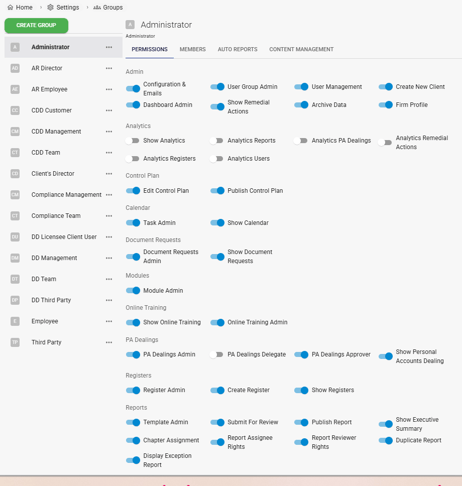
Group-level Permissions List
You can check this list of Group-level Permissions by visiting Settings > Groups
"Show” permissions let users in the Group see and use a feature (e.g., Show Document Request). “Admin” permissions let them manage it for everyone (e.g., Document Request Admin).
|
Permission |
What users in the Group can do |
When it applies |
|
Admin |
||
|
Configuration & Emails |
Edit configuration, email log, notifications and templates |
Setting up logos, themes and emails |
|
User Group Admin |
Manage Groups, their users, permissions and Auto Reports; see where access is used |
Managing Groups |
|
User Management |
Invite and remove users |
Adding or removing users |
|
Create New Client |
Set up a sub-client environment under the main environment |
Creating a client |
|
Show Remedial Actions |
Use Remedial Actions |
Icon on Home Page |
|
Archive Data |
Download data from Modules, Registers, PA Dealing and Control Plans |
Downloading archived data |
|
Firm Profile |
Enter firm profile details under Settings (mainly SM&CR) |
Used in Control Plan schedules |
|
Background Checks (if purchased) |
||
|
Show Background Checks |
Create and view cases |
Icon on side bar and Home Page |
|
Background Checks Admin |
As Show, plus import and export cases |
Managing checks |
|
Control Plan |
||
|
Show Control Plan |
View and download Control Plans and progress reports |
Icon on Home Page (under Compliance) |
|
Edit Control Plan |
As Show, plus create and edit |
Creating and editing plans |
|
Publish Control Plan |
As Edit, plus approve and sign off |
Signing off plans |
|
Calendar |
||
|
Task Admin |
See, edit, assign, import and export everyone's tasks and projects; send reminders |
Managing all users' tasks |
|
Show Calendar |
View and create their own tasks and projects |
Icon on side bar |
|
Document Requests |
||
|
Document Requests Admin |
As Show, plus assign and manage all requests |
Managing requests |
|
Show Document Requests |
Manage their own requests: view, upload, download, rename, delete, send reminders, add to Reports |
Icon on Home Page (under Due Diligence) |
|
Financial Promotions Reviewer (if purchased) |
||
|
Show Financial Promotions Reviewer |
Add reviews; view and download completed Eva reviews they added or were assigned |
Icon on Home Page (under AI) |
|
Financial Promotions Reviewer Admin |
As Show, plus view/edit all entries |
Managing all reviews |
|
Modules |
||
|
Module Admin |
Create and remove Modules and set their permissions (also remove User Group Admin to fully block this) |
Managing Modules |
|
Online Training (if purchased) |
||
|
Show Online Training |
View and complete their own courses |
Icon on Home Page and side bar |
|
Online Training Admin |
Assign, edit and track training |
Managing users' training |
|
PA Dealings (Statement Reader and Broker Feed can be added) |
||
|
PA Dealings Admin |
Manage PA Dealing settings, lists, instruments, accounts, fields and statements; view all trades |
Configuring PA Dealing |
|
PA Dealings Delegate |
Log trades for others (e.g. a Personal Assistant) |
Logging trades for others |
|
PA Dealings Approver |
Approve or reject others’ requests (not their own); view all trades |
Requests needing manual approval |
|
Show PA Dealing |
Log, view and edit their own trades and statements (no settings) |
Icon on side bar |
|
Registers |
||
|
Register Admin |
Edit and delete Register settings, columns, rules and permissions |
Managing Registers |
|
Create Register |
Create new Registers (needs Register Admin; kept separate as not all admins create them) |
Creating a Register |
|
Show Registers |
See the Register list (each Register also needs its own permission) |
Icon on side bar |
|
Reports |
||
|
Template Admin |
Create, copy, edit and delete Report Templates and their permissions |
Settings > Report Templates |
|
Submit for Review |
Send a Report to the reviewer |
Per template set-up |
|
Publish Report |
Publish Reports |
Publication |
|
Show Executive Summary |
See a Report's Executive Summary |
Within a Report |
|
Chapter Assignment |
Assign chapters to people (also set content permissions) |
Allocating chapters |
|
Report Assignee Rights |
Own a Report and be responsible for completing it |
Report ownership |
|
Report Reviewer Rights |
Review Reports |
After submission |
|
Duplicate Report |
Copy a Report |
Duplicating |
|
Display Exception Reports |
See errors from copying |
After duplicating |
Content-specific permissions
These control what users in a Group can do in one Module, Register or Report Template. Module and Register permissions are split into items assigned to them and all items.
|
Item |
Controls |
Where it's set |
|
Module |
Which Reports the Group can see or edit in that Module |
Settings > Modules > click on Module > Permissions (Module Admin only) |
|
Report Template |
What the Group can see or do inside Reports of that type |
Settings > Report Templates > three-dot menu > Permissions |
|
Register |
Which entries the Group can see or edit in that Register |
Settings > Registers > click on Register > Permissions |
Module
This controls which of the reports in the module that members of a group have access to. (This differs from Report Template permissions which control what you can see or do within a report).
It’s broadly split into two types of report (or chapter within) – those that are assigned to the user (the permission type mentions “Assigned”) and all reports/chapters regardless of assignee.
“Active report” means a report that’s in progress or in review, i.e. still editable.
The last four permissions control the Documents tab in the module. To can hide the Documents tab by removing all four permissions from everyone.
Edit permission (of whatever type) implicitly gives the corresponding Read permission – you can’t edit something without being able to read it.
If a group has Read or Edit permission on a report, that also gives them implicit Read or Edit permission on all the chapters in the report.
|
Permission |
What users in the Group can do |
|
Create Report |
Create new Reports in this Module |
|
Assigned Reports – Read |
Read only Reports assigned to them |
|
Assigned Reports – Delete |
Delete only Reports assigned to them |
|
Assigned Reports – Edit |
Edit only Reports assigned to them |
|
Active Reports – Read |
Read any active Report in the Module |
|
Active Reports – Delete |
Delete any active Report in the Module |
|
Active Reports – Edit |
Edit any active Report in the Module |
|
Active Reports Assigned Chapters – Read |
Read only chapters assigned to them (assigned via three-dot menu > Configure) |
|
Active Reports Assigned Chapters – Edit |
Edit only chapters assigned to them (assigned via three-dot menu > Configure) |
|
Assigned Report Attachments – Read |
Read attachments only on Reports assigned to them |
|
Assigned Report Attachments – Upload |
Upload attachments only to Reports assigned to them |
|
Report Attachments – Read |
Read attachments on any Report in the Module |
|
Report Attachments – Upload |
Upload attachments to any Report in the Module |
|
Published Assigned Reports – Read |
Read only published Reports that were assigned to them |
|
Published Reports – Read |
Read any published Report in the Module |
|
Upload Module Documents |
Upload documents to the Module’s Uploaded Documents tab |
|
Read Module Documents |
Read documents in the Module’s Uploaded Documents tab |
|
Delete module documents you uploaded |
Delete only Module documents they uploaded |
|
Delete any module documents |
Delete any Module document |
Report Template
This controls which parts/functions of a report that members of a group have access to. (This is distinct from Module permissions, which control which reports you can see/edit).
|
Permission |
What users in the Group can do |
|
Can Hide Report Text |
Hide the Report text |
|
Show Questions |
See and answer the Report’s questions |
|
Allow Document Review |
Add a Document Review Comment to each question, as part of the review workflow |
|
Edit Report Text |
Edit the Report text |
|
Can Undo Report Text |
Undo edits to the Report text |
|
Show Report Text |
See the Report text |
|
Show Red Flags and Concerns |
See the Red Flags and Concerns section |
|
Can Preview Report |
Preview how the finished Report will look |
|
Add/Rename Chapters and Sections |
Add and rename chapters and sections (via the three-dot menu on each) |
|
Report Comments |
Add and see Report comments |
|
Edit Red Flags Concerns |
Edit items in the Red Flags and Concerns section |
Example: a Group with Active Reports – Read and Assigned Reports – Edit on a Module, plus Show Questions on its Template: every user in the Group can see all active Reports in that Module but can only complete the Reports assigned to them.
Assigning Reports: every Report needs an assignee, who is responsible for completing it. Delegates can help, and people can be limited to certain chapters.
Reviewing Reports: every Report needs at least one Reviewer (can add up to five) and is responsible for reviewing and publishing Reports (as per the Template configuration). Reviewers can reject a submitted report and add comments explaining why.
Checking a user's access: go to Settings > Users > [User] > Access to see everything that user can see and do in the Client, Modules, Report Templates, and Registers.
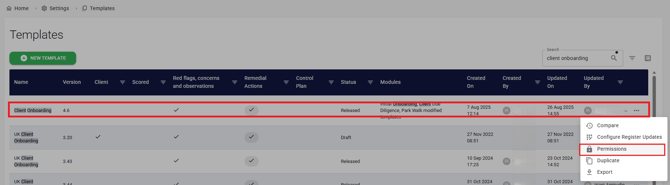
Edit this Permission by visiting Settings > Report Templates > 3-dot of the Specific Report Template > Permissions
NOTE: Most users who need to interact with a template's reports will require permission to access Show Questions, as it enables them to interact with the core questions of each report.
Register Permissions
This controls which of the register entries that members of a group have access to.
It’s broadly split into two types of register entry – those that are assigned to the user (the permission type mentions “Assigned”) and all entries regardless of assignee (the permission type mentions “Any”).
Register permissions are split into three sections:
|
Permission |
What users in the Group can do |
|
Entry-level Permissions: |
|
|
Read Assigned |
Read only entries assigned to them |
| Read Any |
Read any entry |
| Create New |
Create new entries |
| Import and Export Data |
Import and export Register entries. Export will only export those you can read, not those you can’t. |
| Modify Assigned |
Modify only entries assigned to them |
| Modify Any |
Modify any entry |
| Lock Assigned |
Ability to lock an entry assigned to them, preventing further edits |
| Lock Any |
Ability to lock any entry |
| Delete Assigned |
Delete only entries assigned to them |
| Delete Any |
Delete any entry |
|
Permission |
What users in the Group can do |
|
Resource Permissions: |
Apply to attachments: |
| Read Assigned |
Read attachments only on entries assigned to them |
| Read Any |
Read any attachment |
| Modify Assigned |
Modify attachments only on entries assigned to them |
| Modify Any |
Modify any attachment |
|
Permission |
What users in the Group can do |
|
Column-level Permissions: |
Apply to individual columns, which vary by Register. |
| Read Assigned |
Read this column only for entries assigned to them |
| Read Any |
Read this column for any entry |
| Modify Assigned |
Modify this column only for entries assigned to them |
| Modify Any |
Modify this column for any entry |
Edit this Permission by visiting Settings > Registers> [REGISTER NAME] > Permissions Tab