![Leo_logo_no extended kb-01.png]](https://help.leo.tech/hs-fs/hubfs/Leo_logo_no%20extended%20kb-01.png?height=40&name=Leo_logo_no%20extended%20kb-01.png)
Document Request in Template Editor Set-up
Configure your Leo report templates to have specific documents that are needed every time a specific report template is used to generate a report.
To set up this feature:
- Go to Settings
- Report Templates
- Create, edit a draft or duplicate an existing template.
Note: There's an option to set up specific requests for the required documents (e.g. proof of ID documents, FCA Certificates etc.).
There is a new tab in Template Editor called ‘Documents To Request’
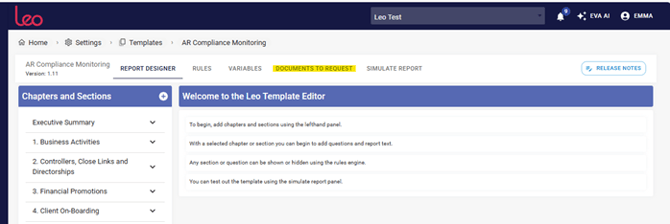
There are three ways in which you can set up the documents to be requested
- Add from Questions
- Document for Chapter
- Report Level Document
1. Add from Question:
This is an automatic tool that will allow you to link each question already created in the report as an attachment to the Document Request feature.
- Click on the DOCUMENT REQUEST tab
- Click on the green button ADD FROM QUESTION
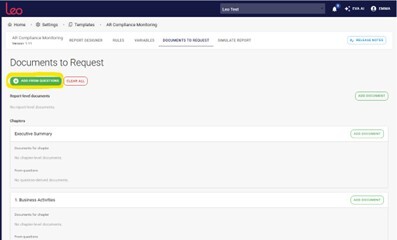
This action will tell Leo to look through your template for all the questions where you’ve created an attachment question (the ones with the paperclip icon on the right).

And automatically create the document requests.
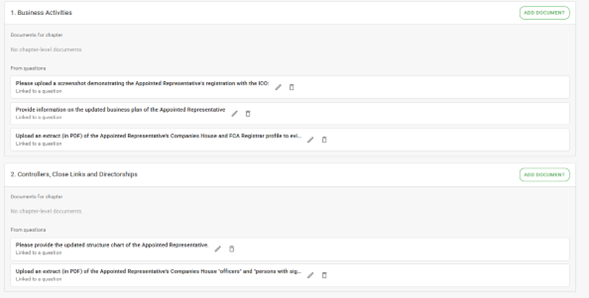
These can also be edited and deleted if they are not necessary by clicking on the relevant icon.
Alternatively, if you didn’t want to do that, you can click on the ‘Clear All’ button and it will remove all of the added document requests.
2. Documents for Chapters
You can add more documents to the chapter by clicking the ADD DOCUMENT button in the desired chapter (e.g. 1. Business Activities):
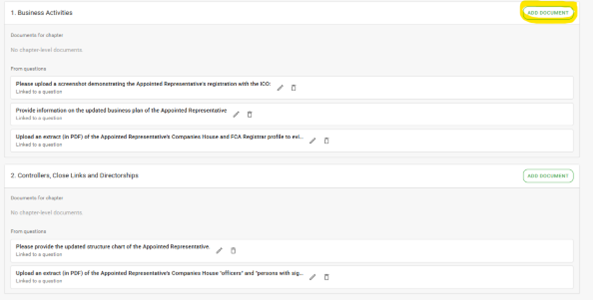
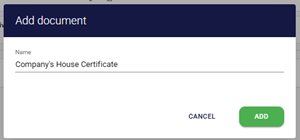
An ‘ADD DOCUMENT’ dialogue box will open.
Give your document a name and click the green ‘ADD’ button:
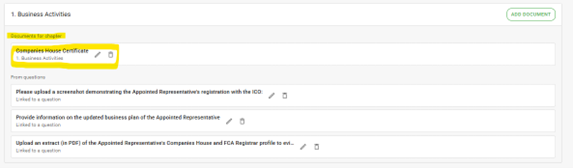
This will add the new document to the ‘Documents for Chapter’ section:
If you added it to the wrong chapter by mistake, no problem, click the pencil ‘edit’ icon and the Edit document dialog will open where you can change the name and select the relevant report chapter from the drop-down menu:
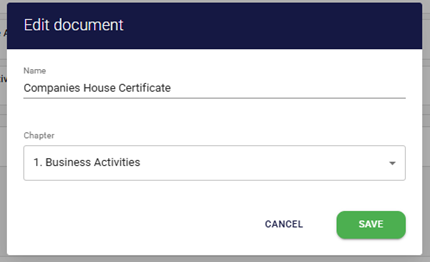
Just click the SAVE button when you are done and Leo will move the document request to the selected chapter.
3. Report-level documents
If you have documents to be attached to the report, but not a specific chapter/question, then you can add a document at a Report-level.
- Click on the ADD DOCUMENT button
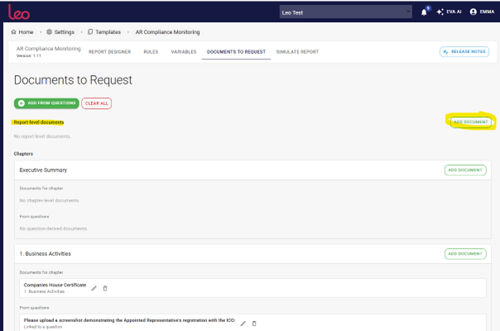
- The ‘Add Document’ dialogue box will open, complete the document name and click on ADD
The document will now appear at the top, in the ‘Report-level documents’ section.
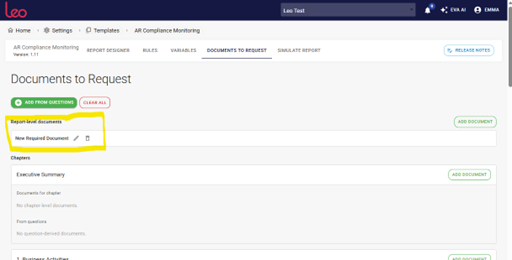
Once the Template is ready, you can release it for use in the corresponding Report. All reports based on this template will automatically include the configured document requests.
Report set-up
To create a report using your recently configured template, including the document requests, first make sure you have added the new template to the Module where that Report lives.
- Navigate to the module selected upon releasing the template and click on the ‘+NEW REPORT’ button, select the template and complete the rest of the fields.
- Click on the green ‘CREATE’ button.
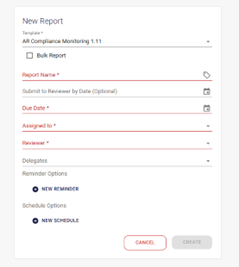
- When ready, access your report, and there is a new tab at the top called ‘REQUESTED DOCUMENTS’:
Note: There is an amber circle with a number in it indicating that the document request has not yet been sent.
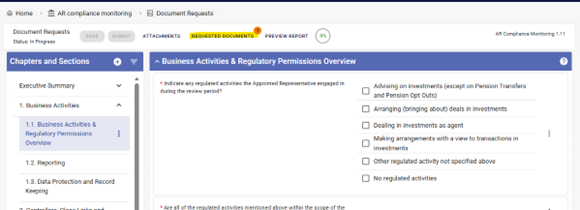
- Click on the REQUESTED DOCUMENT TAB. This will open the ‘Requested Documents’ Dialogue box:
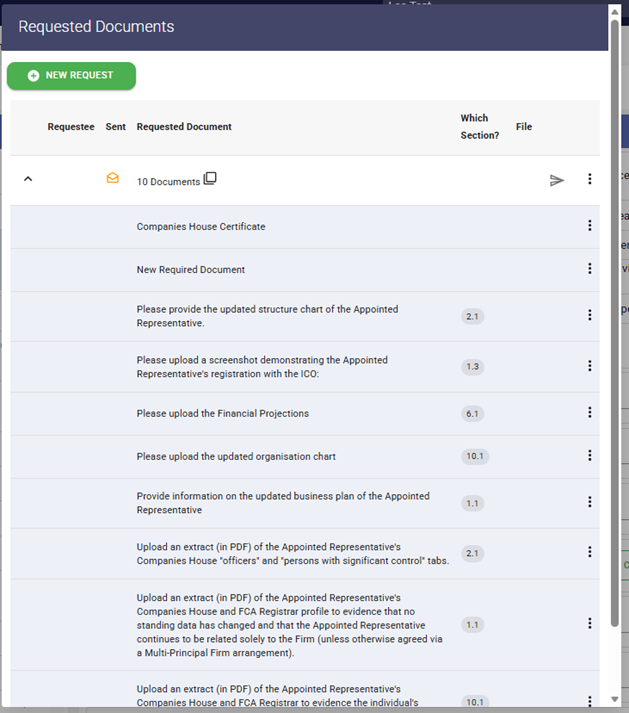
This is displaying all of the documents as configured in your template that includes a ‘Which Section’ column for you to see which Chapter and Question of the report the document is linked to.
Note: The list is sorted alphabetically on the Requested document name and not the section number.
Missing document or need a specific document for this report?
- Click on the +NEW REQUEST button at the top, and you can add the name of the document and specify who you want to provide that document.
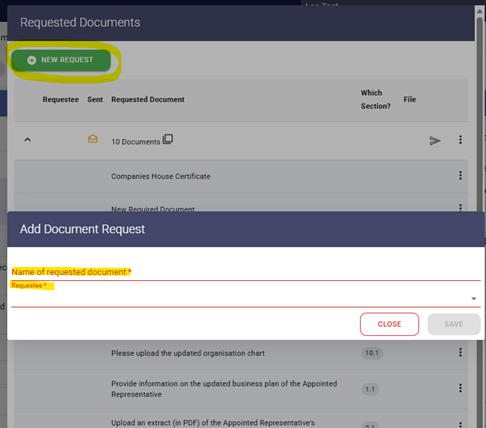
- Click on the drop-down and select ‘New Requestee’ from the list, type their name and give them a deadline to provide the document.
- Click the green SAVE button, and it will be added to the list of requested documents.
Note: Any new documents added can’t be assigned to a specific Chapter or Question. The document will be attached as part of the Appendix.
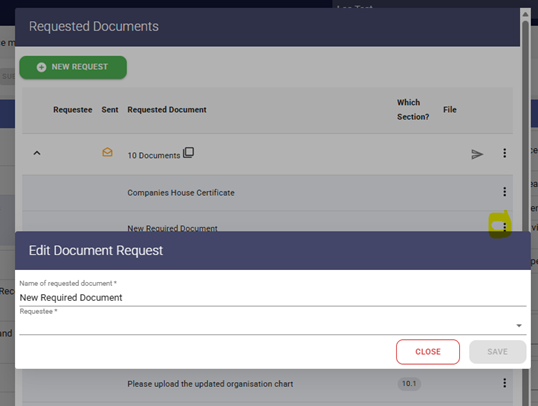
Each listed document (showing in alphabetical order) has a 3-dot menu, which will enable you to edit or delete that document. The Edit function also allows you to assign the document and set a deadline:
Unsent document requests are shown as an amber open envelope icon in the ‘Requested Documents’ tab:
Clicking on the 3-dot menu for this line will give you one option – ‘Manage/Send Document Request’, which will open the dialogue box:
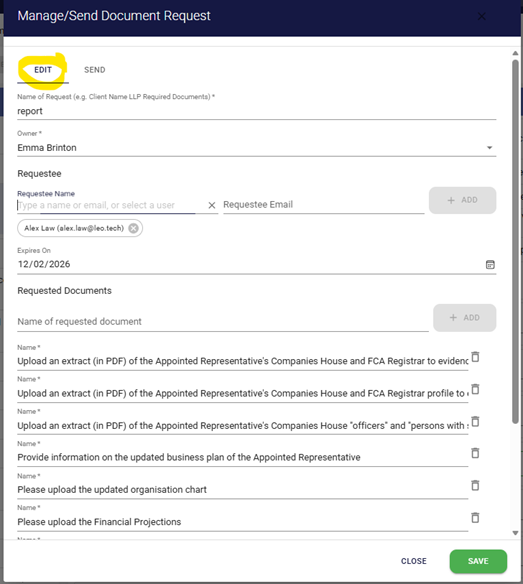
It is still possible at this point to add or remove any documents before the email is sent.
The email can also be sent to multiple requestees by selecting them from the requestee list or adding the requestee name and email address and clicking the +ADD button when it is activated.
Click Save and wait for a moment whilst Leo prepares the email. It will take you straight into the ‘SEND’ tab, where it displays the email template for sending the document request. Click on the green ‘SEND’ button to send the email for the documents needed to complete the report.
Sent document request emails show the requestee's name and a green tick in the Sent column.
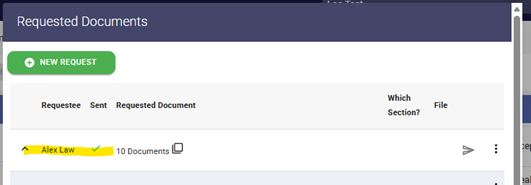
Once sent, document requests are automatically added by Leo into the ‘Document Requests’ Feature and show who they have been assigned to and how many documents have been received:
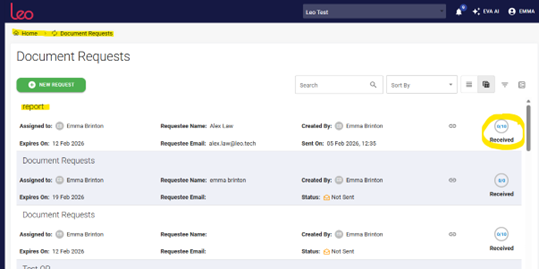
Clicking on the report name here will open up the document request ‘Manage/Send Document Request’ dialogue box, and by clicking on the ‘Save’ button, you will be taken straight to the ‘Send Reminder’ option, which will resend the document request email.
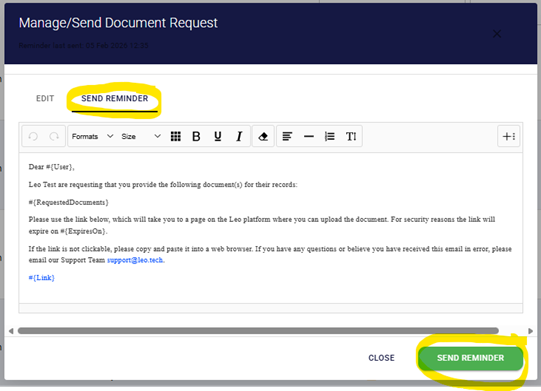
The requestee will receive an email from Leo containing a link to a document Requests page where they will be able to upload the documents.