![Leo_logo_no extended kb-01.png]](https://help.leo.tech/hs-fs/hubfs/Leo_logo_no%20extended%20kb-01.png?height=40&name=Leo_logo_no%20extended%20kb-01.png)
⏱️ 1min
Setting up a new user on Leo
Here are the steps to take whenever you need to set up a new User account on Leo (for example, when a new employee joins the firm):
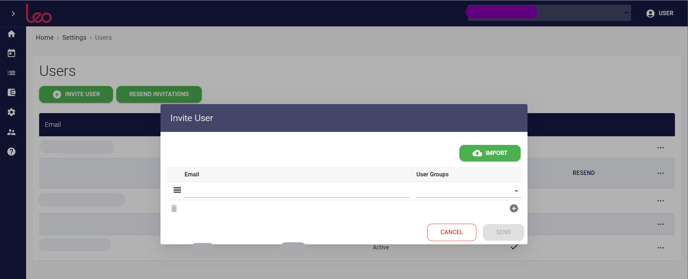
- From the Settings page, click on Users
- Click the green INVITE USER button
- On the Invite User pop-up screen
- Type the email address of the person you wish to invite to join Leo
- From the drop-down menu under User Groups, select the permissions Group(s) to which you want to assign the new user (you can find out more about Groups here.)
- When you’ve added all the new Users you need to, click SEND
- The new users you have invited will receive an email from Leo, with a secure direct link to set up their new account
- On the Users landing page, next to the invitee’s names, you’ll see in the Status column: Invitation Sent and today’s date
- When they accept the invitation to join Leo, you’ll see in the Status column that they are now Active.