
🕒 2 minutes
Here are the steps to reset your password or 2FA in Leo:
Part 1 – Reset your password
On the login page, enter your email address, then click "Continue".
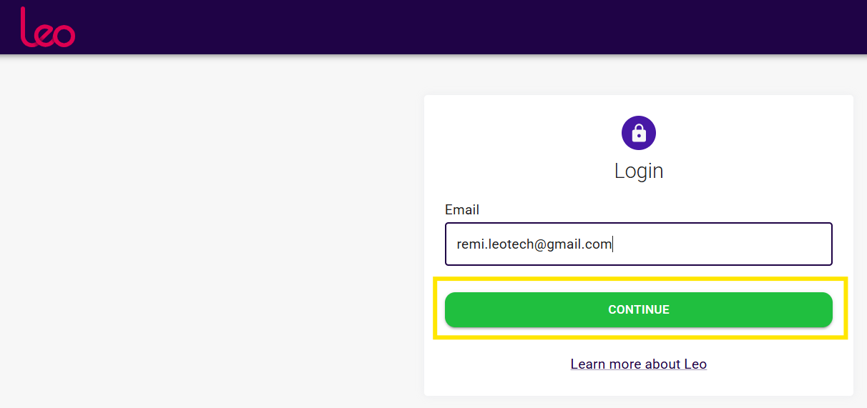
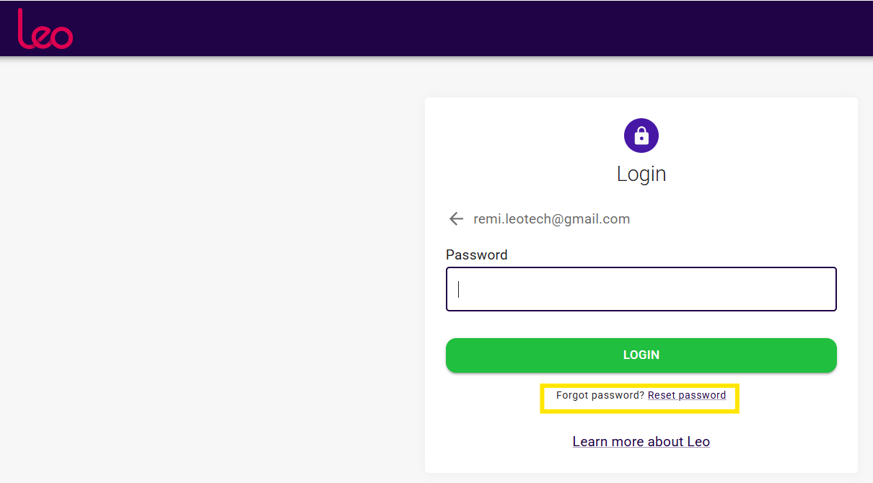
On the password screen, click "Reset password".
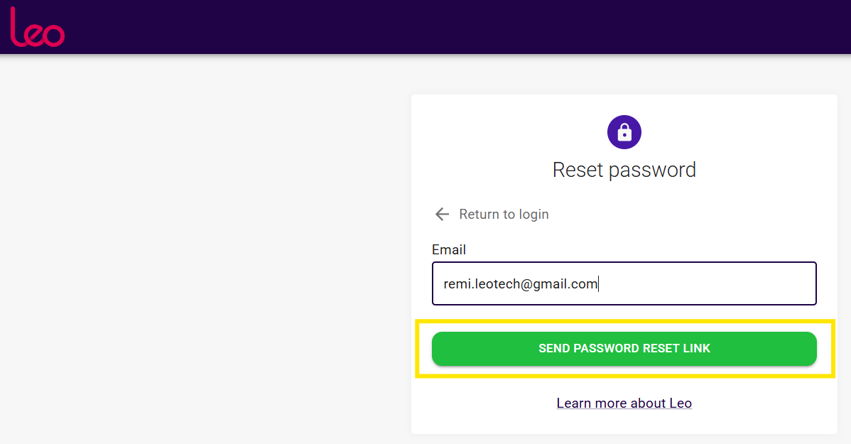
Confirm your email address, then click "Send Password Reset Link".
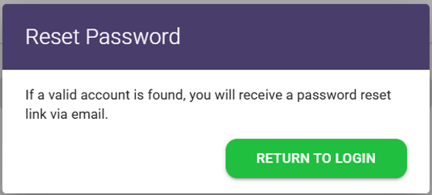
A confirmation message is displayed. Check your email inbox for the reset link.
Open the "Forgotten password" email from Leo and click the link (or copy and paste it into your browser).
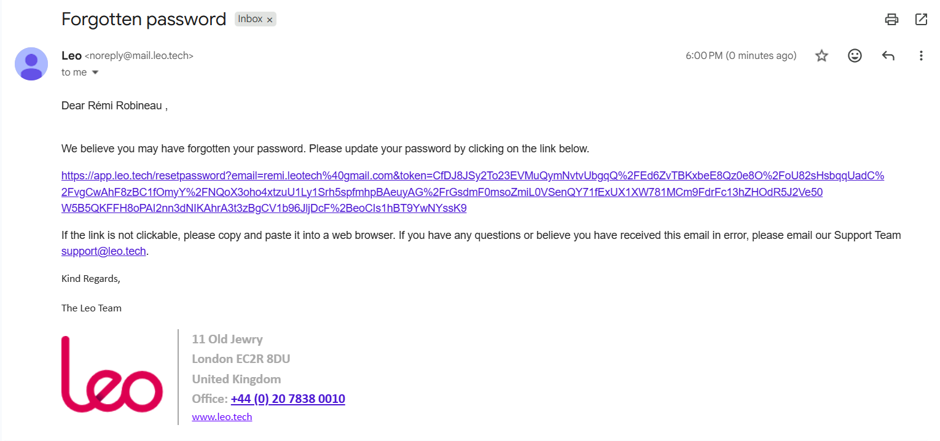
Enter your new password in both fields, then click "Reset Password".
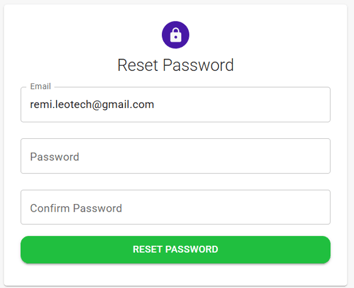
A confirmation message is displayed once your password has been updated. Click "Return to Login".
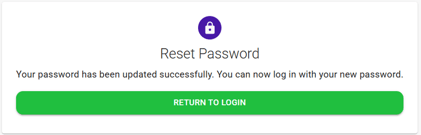
Part 2 – Reset your Two-Factor Authentication (2FA)
Log in with your password or new password. If you no longer have access to your authenticator app, click "here" to reset your Two-Factor Authentication.
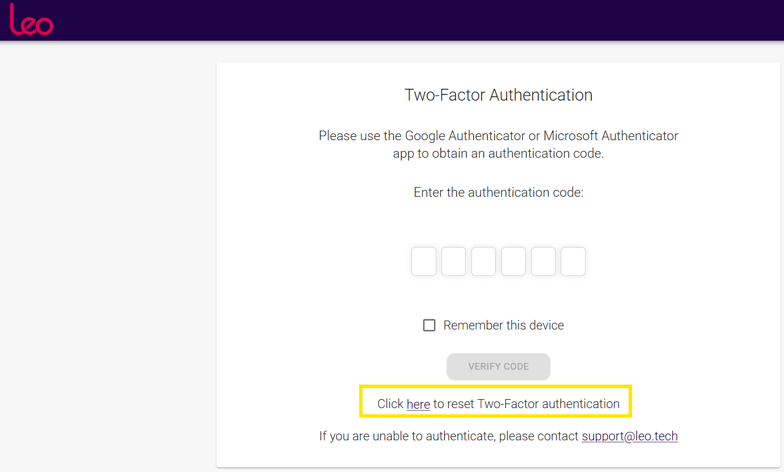
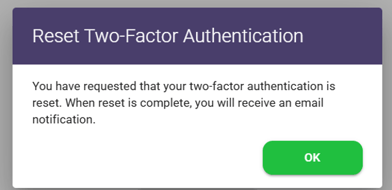
Click "OK" to confirm your request. You will receive a confirmation email once the reset is complete.
(Please note this can take up to an hour on weekdays, as reset requests are approved by a member of our team).
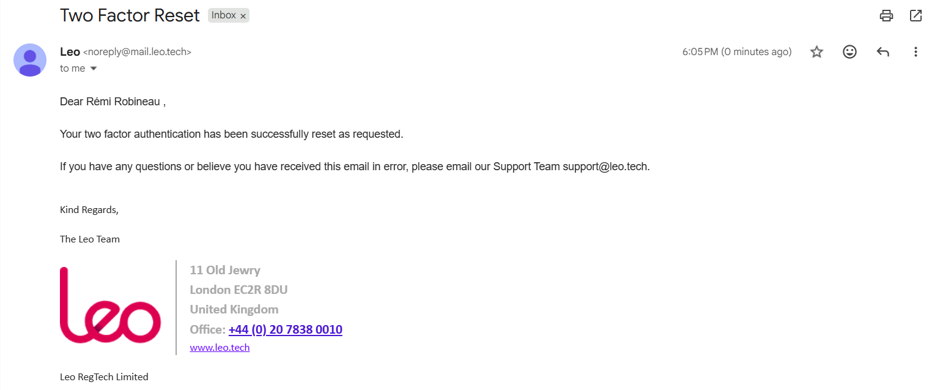
Check your inbox for the "Two Factor Reset" email confirming that your 2FA has been reset.
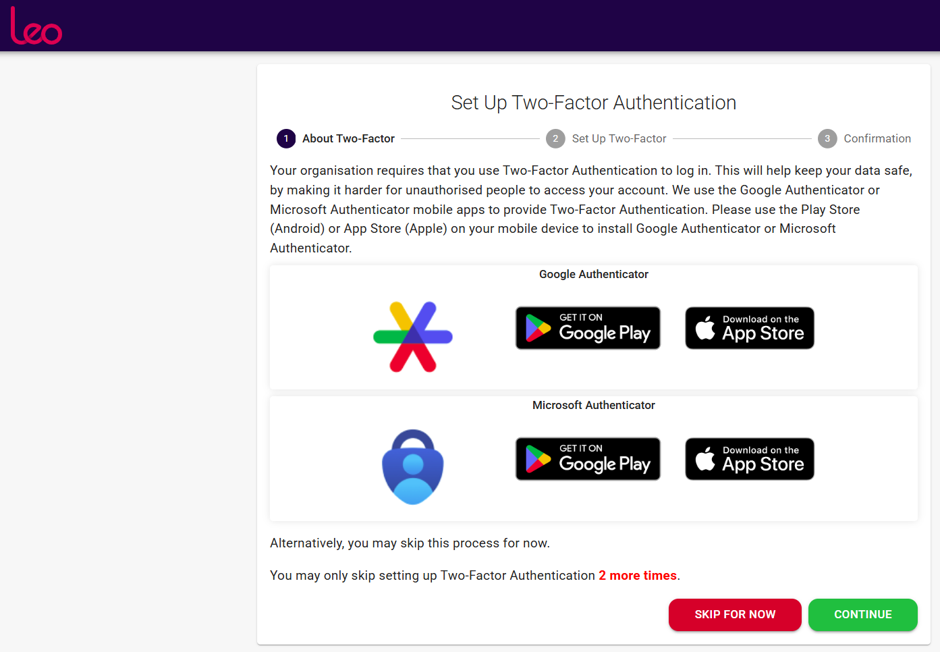
Log back in. On the "Set Up Two-Factor Authentication" screen, install Google Authenticator or Microsoft Authenticator on your mobile device if you have not already done so, then click "Continue".
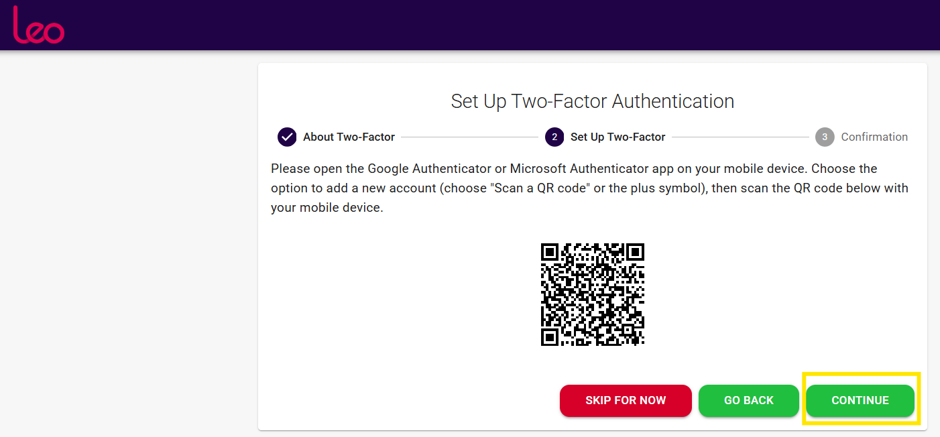
Open the Authenticator app, choose "Scan a QR code" (or the "+" icon), scan the QR code shown on screen, then click "Continue".
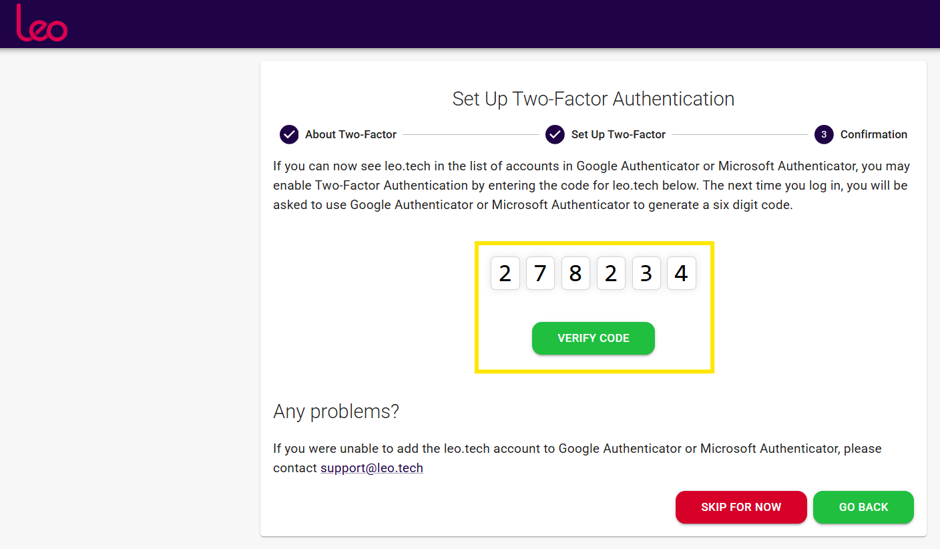
Enter the 6-digit code shown in the app, then click "Verify Code" to complete the setup.
Once you have completed these steps, you will land on your Leo account homepage.