
⏱️ 3 minutes
This list explains the categories of General Permissions that may be assigned to a Group. Permissions on Leo are assigned to Groups. All the Users in that Group then have those permissions.
There are two types of permission on Leo:
- General permissions
- Content-specific permissions
See Permissions for details.
General Permissions List
You can check this list of General Permissions by visiting Settings - Groups
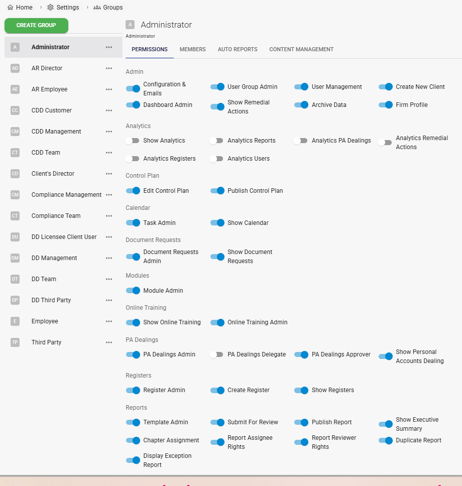
1. Admin
-
Configuration & Emails: Turns on the button called Configuration in Settings. See Account Configuration.
-
User Group Admin: Change the Users’ Group, control the permissions for each Group.
-
User Management: Invite and remove new users. See How do I add another user?
-
Create New Client: can set up separate environment within Leo for a client. See Clients – Setting up an environment on Leo.
-
Dashboard Admin: Add Modules/Categories and organise Dashboard.
-
Show Remedial Actions: Show and access the Remedial Actions Feature on the Home Page.
-
Archive Data: Download Reports, Registers and other data in bulk - typically for archive purposes.
-
Firm Profile: Enter basic information about your organisation. Currently, the information is related primarily to SM&CR categorisation.
2. Background Checks (only available if this is included in your plan)
-
Show Background Checks: Show Background Checks icon in the Left Panel.
-
Background Checks Admin: Edit, delete, or check background checks performed.
See How to perform background checks .
3. Control Plan
-
Edit Control Plan
-
Publish Control Plan
4. Calendar
-
Task Admin: View and edit all users' tasks in the Calendar, not just their own.
-
Show Calendar: Show the Calendar icon in the left-hand icon bar.
5. Document Requests
-
Document Requests Admin: assigning users to Document Requests and managing permissions to view, edit, or delete any request.
-
Show Document Requests: Show Document Request Module on Home Page.
6. Modules
-
Module Admin: Create and remove Modules, adjust Content-specific Permissions for Modules, and the Report Templates assigned.
NOTE: To prevent a USER from Content-specific Permissions, disable both this option and User Group Admin in Admin. See Permissions.
7. Online Training
-
Show Online Training: Show Online Training on Home Page
-
Online Training Admin: Assign, edit and track Online Training
8. PA Dealings
-
PA Dealings Admin: Manage and update Auto-Approved lists, the instruments within them, and the Covered Accounts available for PA Dealing requests, in accordance with the firm’s PA Dealing policy.
-
PA Dealings Delegate: Delegate PA Dealings
-
PA Dealings Approver: Approve or reject other Users’ PA Dealing requests. Users cannot approve or reject their own requests.
-
Show Personal Accounts Dealing: View PA Dealing requests, approvals and rejections
9. Registers
-
Register Admin: Create or delete Registers, modify their structure (e.g., add/remove columns), configure rules, and adjust permissions.
-
Create Register: Create a new Register.
-
Show Registers: View the list of Registers from an icon in the sidebar.
10. Reports
-
Template Admin: Create and edit Report Templates.
-
Submit for Review: Submit Reports to the next stage to the next stage (either for review or directly to publication, based on the Report Template configuration).
-
Publish Report: Publish Reports.
-
Show Executive Summary: Access the Executive Summary chapter of any reports you're authorised to view, available in both Report Editor and PDF formats.
-
Chapter Assignment: Assign a specific Report or chapter(s) of it to Users.
-
Report Assignee Rights: Designate yourself or be designated by someone else as the Report's Assignee of a Report.
-
Report Reviewer Rights: Designate yourself, or be designated by someone else, as the Report's Reviewer for at least one of the groups they are in.
-
Duplicate Report: Duplicate a Report
-
Display Exception Reports: View any problems logged during Report Duplication.
Content-specific permissions
Definition- Permission Type
-
-
Read: User can view/read a particular digital asset.
-
Edit/Modify: User can change such as editing or performing updates.
-
Create/Delete: People with create permission are allowed to create new documents or other resources. Such users are also often given delete permission as well, although the two permissions are assigned separately.
-
Upload: Users are given the ability to add/modify or delete attachments
-
Lock: Lock data to avoid further Edit/Modify
-
Import/Export: Import/Export data from Leo Platform
-
- Object Type
-
-
Assigned: Reports/Entries/Data assigned to a User
-
Any/All: All Reports/Entries/Data in a specific Module/Register/Feature
-
Active: Reports before Submitting
-
Published: Published Reports
-
Attachments: Attachments of the Reports
-
Module Documents: Library of supporting documents of each Module.
-
Every Module has its own permissions that govern which Group(s) can create, edit, read, delete, or upload attachment to Reports in a specific Module.
Edit this Permission by visiting either of the route below:
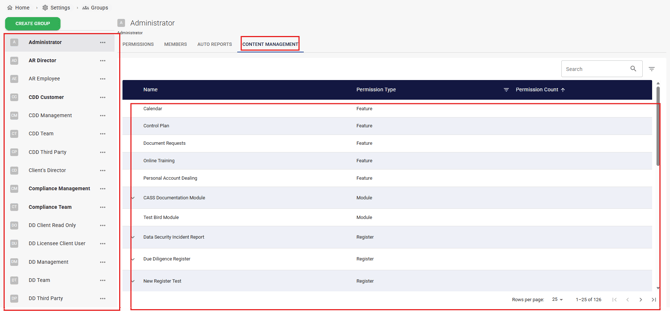
- Settings – Groups – The Group you want to change Permission for - CONTENT MANAGEMENT – The Specific Module (See screenshot below)
- Settings – Modules - The Specific Module
Every Register has its own permissions that which Group(s) read or modify the data in a specific Register.
Edit this Permission by visiting either of the route below:
- Settings – Groups – The Group you want to change Permission for - CONTENT MANAGEMENT – The Specific Register (See screenshot below)
- Settings – Register - The Specific Register (Register Column Permissions can also be found here.)
Every Feature has its own permissions that which Group(s) read or modify the data in a specific Feature.
Edit this Permission by visiting either of the route below:
- Settings – Groups – The Group you want to change Permission for - CONTENT MANAGEMENT – The Specific Feature (See screenshot below)
- Settings – Content Management - The Specific Feature
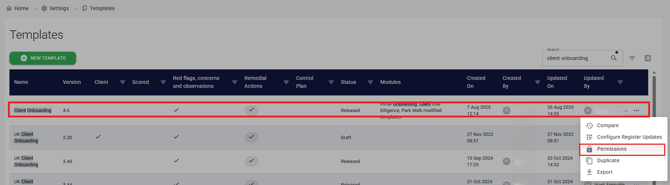
Every Report Template has its own permissions that govern which Group(s) can apply action below to Reports based on a specific Report Template.
- Hide Report Text
- Show Questions
- Document Review
- Edit Report Text
- Undo Report Text
- Show Report Text
- Show Red Flags, Concerns, and Observations
- Preview Report
- Add/Rename Chapters and Sections
- Report Comments
- Edit Red Flags, Concerns, and Observations
NOTE: Most users who need to interact with a template's reports will require permission to access Show Questions, as it enables them to interact with the core questions of each report.
Edit this Permission by visiting Settings-Report Templates- 3-dot of the Specific Report Template
When a new report is created, it must be assigned to a user for completion. Delegate users can also be added to allow multiple people to interact with the report. Depending on the assigned permissions, the user may have access to the entire report or only specific sections. For instance, an employee working on an end-of-year review can be given access only to the relevant chapter, without seeing other sections assigned to different users.