
⏱️ 3 minutes
User Permissions define the access rights granted to Groups to which users are assigned to. Permissions specify what data and actions each group can access or perform. User permissions are considered a foundational aspect of system security ensuring only those with a compelling need can access Leo.
User grouping should reflect how you intend to manage permissions. For example, you might group employees by location to assign shared access rights. A user can belong to multiple groups.
By default, only an Administrator can assign or revoke permissions for a Group and its Users, but this capability can be granted to other Groups. (see Group)
General permissions
These permissions apply across all Modules /Registers/Features/Report Templates, granting access globally without needing to configure each item individually.
Managed in:
- Settings - Groups - PERMISSIONS
To see the General Permissions, see the related article Permissions List– General Permission.
Content-specific permissions
These permissions are defined at the individual Module, Register, Feature, or Report Template level, requiring configuration for each item separately.
Managed in:
- Settings – Groups - CONTENT MANAGEMENT
- Settings - Modules/Registers/Report Templates
For Registers and Modules, a shortcut is available in the top-right corner.
Example
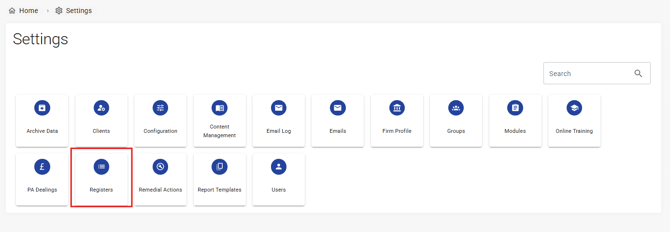
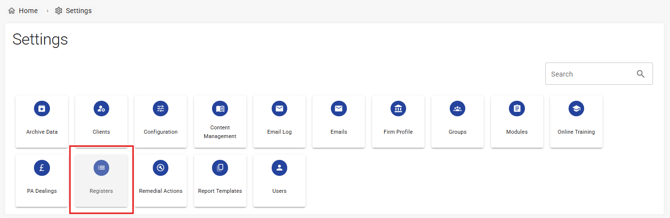
Taking Registers as an example, you can be authorised to Register Admin, which is a General Permission (granted across all Registers).
If you have the permission, Registers in Settings will be available.
If you do not have the permission, the Registers will be grey.
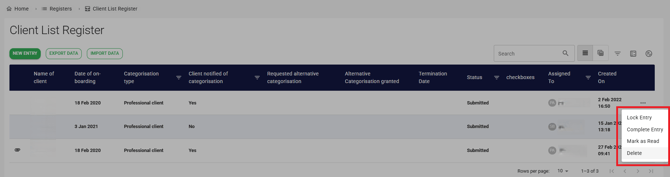
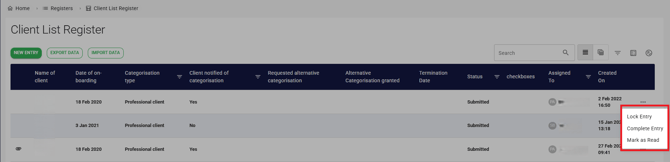
Among all Registers, taking Client List Register as an example. You can be authorised to delete entry, which is a Content specific Permission (granted to one specific Registers).
If you have the permission, the Delete option will be available.
If you do not have the permission, the Delete option will not appear.
See the article Permissions List for an in-depth permissions explanation.