
⏱️ 45 secs
Groups are a vital element of Leo. When you set up a new Group, you will select specific permissions for that particular group. Then you can set the scope of each user's access to Leo by assigning them to the appropriate Group to fit their role.
For example, a Compliance Officer would usually be assigned to the Compliance Management Group, which would typically have a high set of permissions within Leo – including oversight of most data. Non-Compliance members of staff would normally be assigned to the Employee Group. This Group has much more limited permission sets: users will only have access to data on Leo that’s relevant to non-Compliance employees.
Groups are also great for sending out relevant documentation to all members, rather than individually. For example, you can send Annual Attestations to all users in your Employee Group at once.
You can increase or limit permissions assigned to different Groups at any time. You can also move specific users between Groups, or add/ remove the number of Groups to which a user is assigned.
Creating a new Group
Leo provides a standard set of default Groups which will cater for most of your firm’s needs. However (if you have the appropriate permissions to do so) you may wish to create a new Group to meet specific requirements for your firm.
Here are the steps to create a new Group:
- From the Settings page, click on Groups
- Click on the green CREATE GROUP button near the top left of the page
- Complete the form, giving the Group a name and a description
- Your Group will now be listed in alphabetical order on the Groups landing page
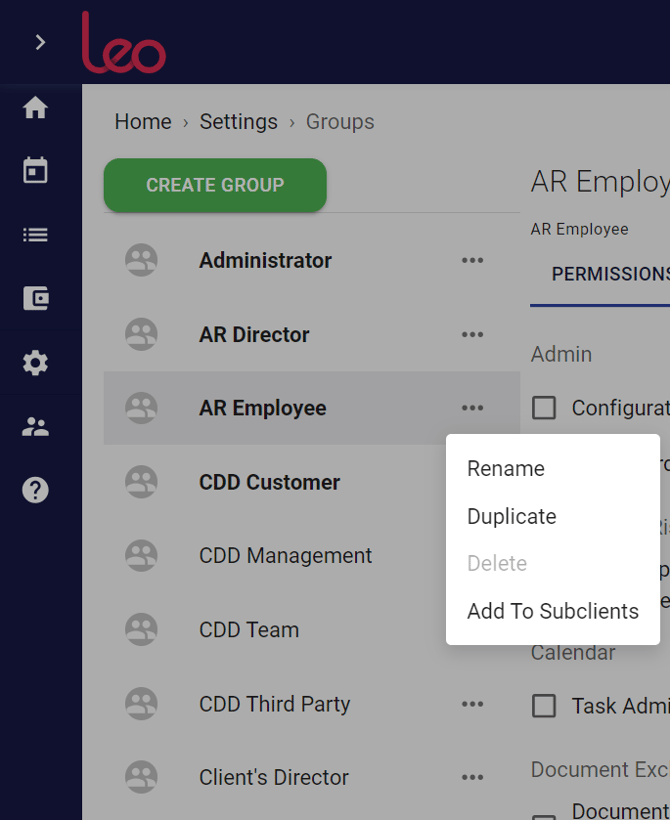
- You can click on the three dots to the right of the Group name to Rename, Duplicate, Delete, or Add to Subclients.
- You can edit the Group’s permissions and activities on Leo at any time by selecting the chosen Group. Use the PERMISSIONS, MEMBERS, AUTO REPORTS and CONTENT MANAGEMENT columns to the right to make the changes you need.
Assigning permissions to a Group
Every user of Leo is assigned to a Group (or Groups). To ensure that employees are only able to access information on Leo that’s necessary and appropriate for their roles, you need to assign the right permissions to each Group.
Here are the steps to assign permissions to a particular Group:
- From the Settings page, click on Groups
- From the alphabetical list that appears, click on the name of the Group that you would like to edit
- To the right, you will see a list of PERMISSIONS. Use the checkboxes to select (or deselect) the actions that the Group’s users are allowed to perform
- You can edit the Group’s activities on Leo in more detail, using the MEMBERS, AUTO REPORTS and CONTENT MANAGEMENT PERMISSIONS
To find out more, see this article on Permissions.
Recommended User Groups
- Administrator
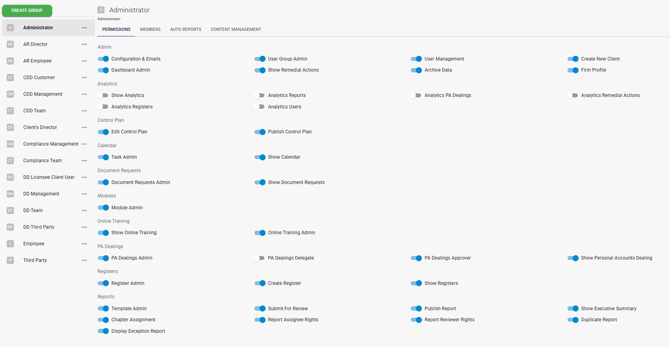
As the name suggests, the Administrator (Admin) user group has all the permissions enabled (see above). This would allow the user who is assigned as an Admin to modify report templates, publish reports, control user access and generally have the highest amount of oversight to user data.
We recommend this user group to be the smallest group, useful for employees who need control over the Leo environment. This could include your Firm’s compliance officer and other operational staff.
- Compliance Management
This group has most of the permissions enabled, but not as much as Admins. Managers and or seniors that support the compliance officer can be put into this category.
- AR Director
Similar to the above group, AR Director is typically for Directors of an AR entity. This group has access to a lot of the data, but not as much as an admin.
- Employee, Third Party
As the name of the groups would suggest, Employee and Third Party groups have the least amount of oversight on the data. Usually, Third Party is given to an individual who normally wouldn’t have access to or use Leo, but may need to complete or sign a chapter or two on a one-off basis.
Tip for User Groups:
The above recommendations are mainly guidelines, and Leo is configurable to what suits your environment. As seen in the screenshot, it’s easy to toggle a specific permission (like Template Admin, the ability to edit templates) on and off for each group.
You can use and start with the pre-set permissions (and continue to do so), but you are also free to have a play with what permissions work best for you, to tweak them as you go, or create an entirely new group with your unique set of permissions.