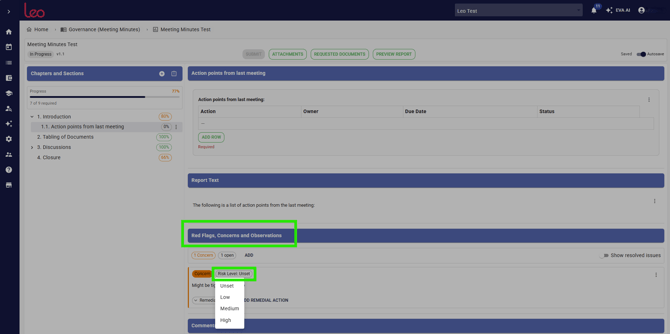
NOTE: Once the report is published, the Remedial Actions can’t be edited on the report but can be edited on the Remedial Actions feature. It won't show in the published report but in the next report in the series. A Remedial Action is an action taken to fix or resolve an Issue (Red Flags, Concerns and Observations).
The Remedial Action feature allows users to follow up on any problem areas identified within reports, streamlining and systematising the process of rectification.
You can do this to both published and unpublished Reports.
- Remedial Actions Feature: A feature on Home Page that includes all Issues from published Reports.
- In-report Remedial Actions: A window in Report that allows you to manage actions from unpublished Reports.
There are 3 ways to add Remedial Actions.
Method 1: Remedial Actions Feature
- From the Home Page, click on the Remedial Actions icon in “Calendar & Tasks” Category.
NOTE: This is the default category for Remedial Actions. If changed, it will appear under the assigned category. See Organising and Creating Modules for details.
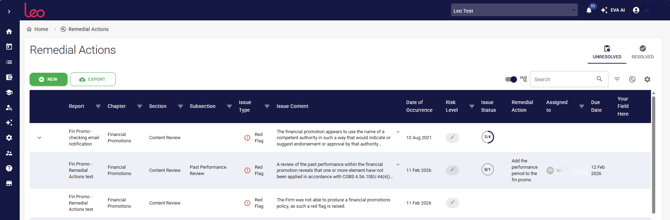
- Click the green +NEW button
- On the Add Remedial Action pop-up screen
-
- Choose the Report you need to add Remedial Actions to
-
- Choose the Issue that you want to address.
-
- Click the green ADD button
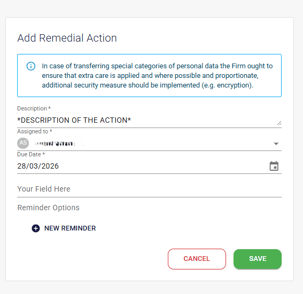
- On the new Add Remedial Actions pop-up screen
-
- Add a Description of the action needed for the Issue
-
- Assign it to a specific user
-
- Choose a Due Date for the Remedial Action
To go to the Report of an issue, follow these steps:
- Find the Remedial Action you need from the list
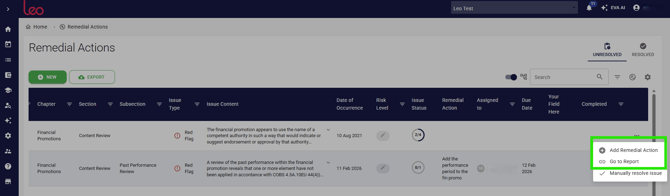
- Click on the three dots (…) and choose Go to Report.
- The system will redirect you to the report and the chapter where Issue is.
Method 2: Remedial Actions Feature
- Find the Issue you need from the list
- Click on the three dots (…) and choose Add Remedial Action. You will see the same pop-up screen as in Method 1.
Method 3: In-report Remedial Actions
Upon spotting an Issue in a report, you can seamlessly create a Remedial Action.
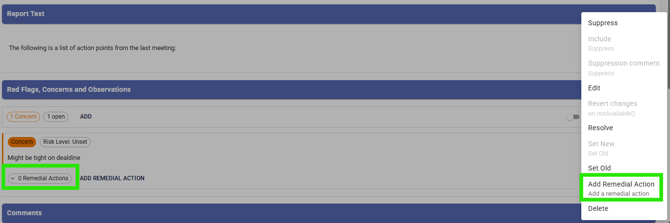
- From the Report, find the Issue you want to add a Remedial Action.
- Both actions below will lead you to the same pop-up screen in Method 1.
- Click ADD REMEDIAL ACTION below the Issue
- Click on the three dots (…) of the Red Flag/ Concern/ Observation and choose Add Remedial Action.
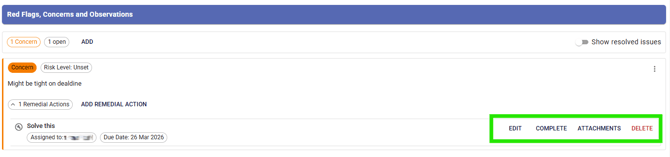
After creating Remedial Action
Once the Remedial Action has been created, it will appear in the report and you can: Edit, Complete, Delete, or Add Attachment.
Consequently, the Remedial Action will appear in the Executive Summary in Report and be added as an entry in the Remedial Actions feature after the Report is published. Unresolved actions can be carried forward to the next report in the series.
NOTE: Once the report is published, the Remedial Actions can’t be edited on the report but can be edited on the Remedial Actions feature. It won't show in the published report but in the next report in the series.
Risk Level
You can set Risk Level (low, medium, high) of an Issue and you can do this for both published and unpublished Reports.
For published Reports,
- Go to Remedial Actions feature, and find the Issue you need to resolve from the list
- Click on the Pencil Icon in Risk Level Column and choose the type of risk
For unpublished reports,
- Go to the Report section with the Issue
- Find Red Flags, Concerns and Observations window at the bottom, click on Risk Level and choose the type of risk