
🕒 2 minutes
To delete a user from your Leo environment, for example, following their departure from the company, please follow the steps below:
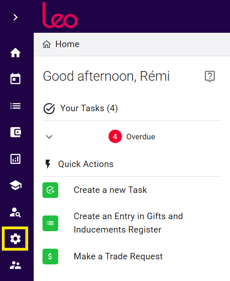
- From the home page of a Leo administrator account, click the cog-shaped icon in the left-hand sidebar
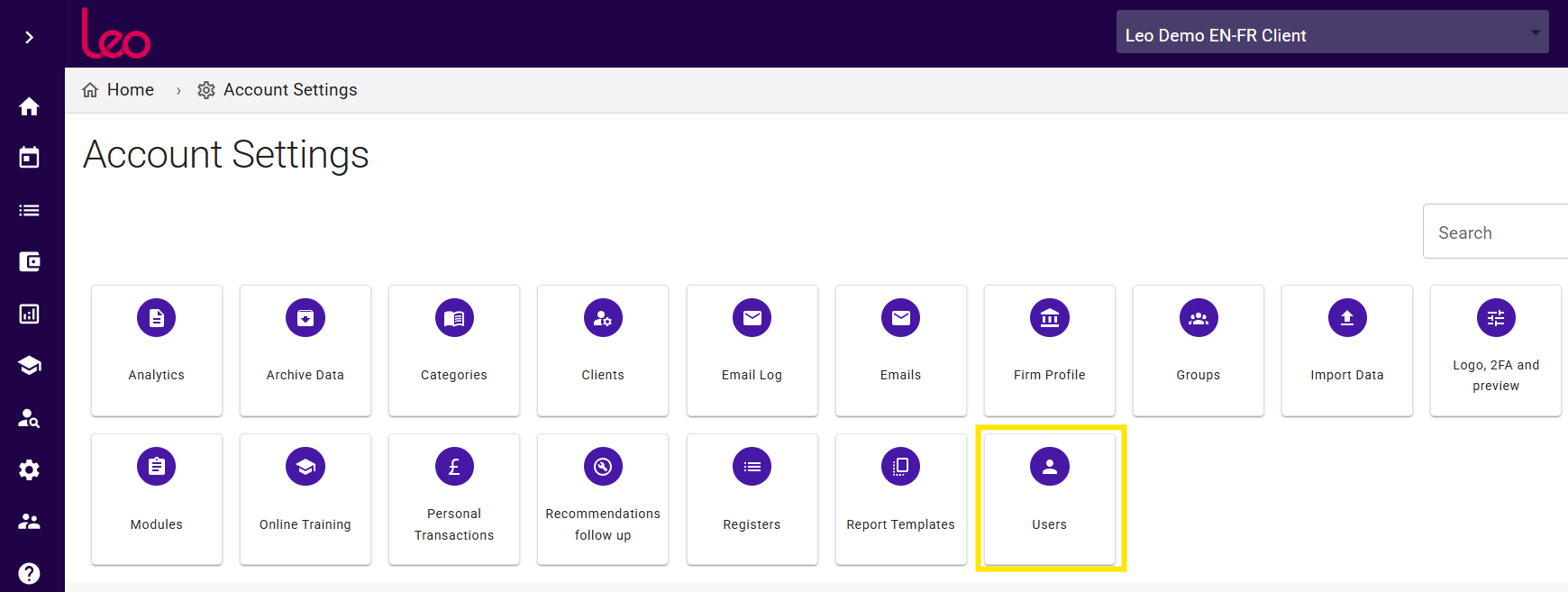
- Once in your Leo account settings, click “Users”
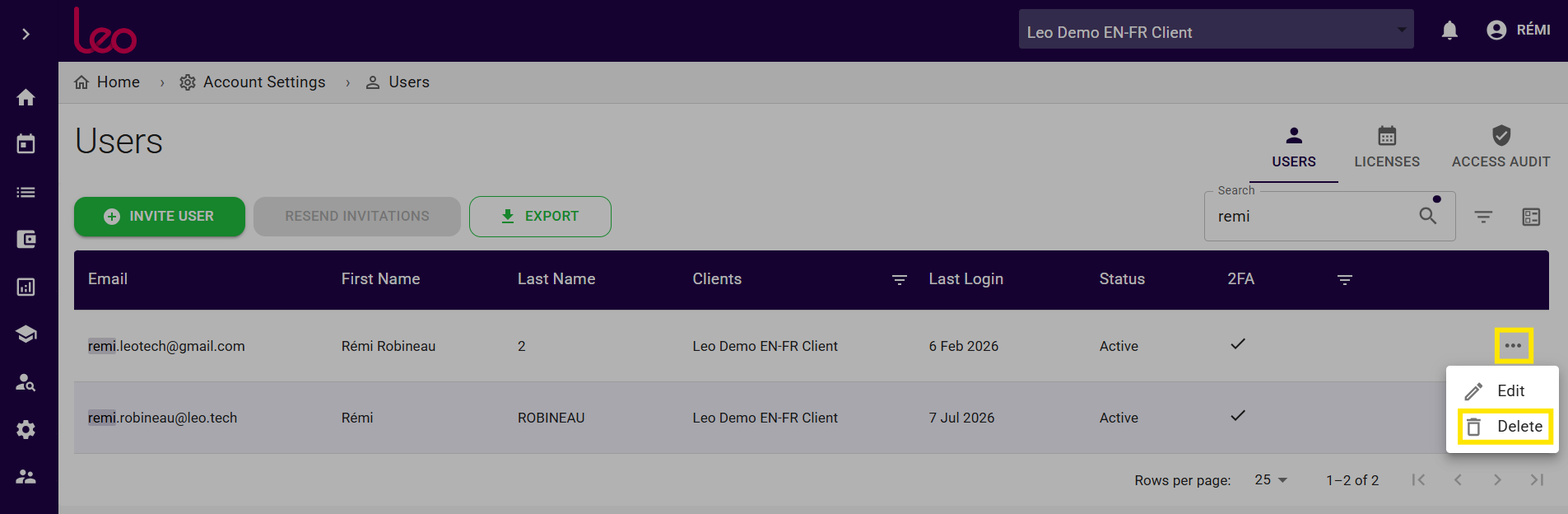
- Select the user you wish to delete, click the three dots to the right of their name, then click “Delete”
A pop-up window will then appear, asking you to confirm the deletion of the user. It will inform you that none of their data will be deleted from the platform: this action will only remove their ability to access Leo.
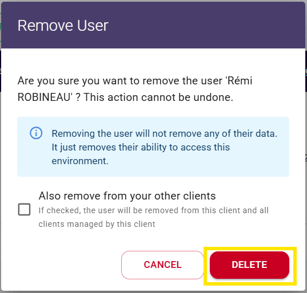
If you are a consulting firm also managing client sub-accounts: if the user also has access to other Leo accounts linked to your environment and you would like to remove them from these sub-accounts as well, you can tick “Also remove from your other clients”
- After clicking “Delete”, the user will be permanently deleted from your Leo account.
If you would like to make a user temporarily inactive rather than deleting them permanently, for example, due to maternity or paternity leave, long-term sick leave, a temporary internal move or the departure of an external consultant who may return for a future missions, please contact us at: support@leo.tech
Upon receiving your request, we will be able to temporarily deactivate the user’s access when they leave, and restore it as soon as they return.